Self-Publishing
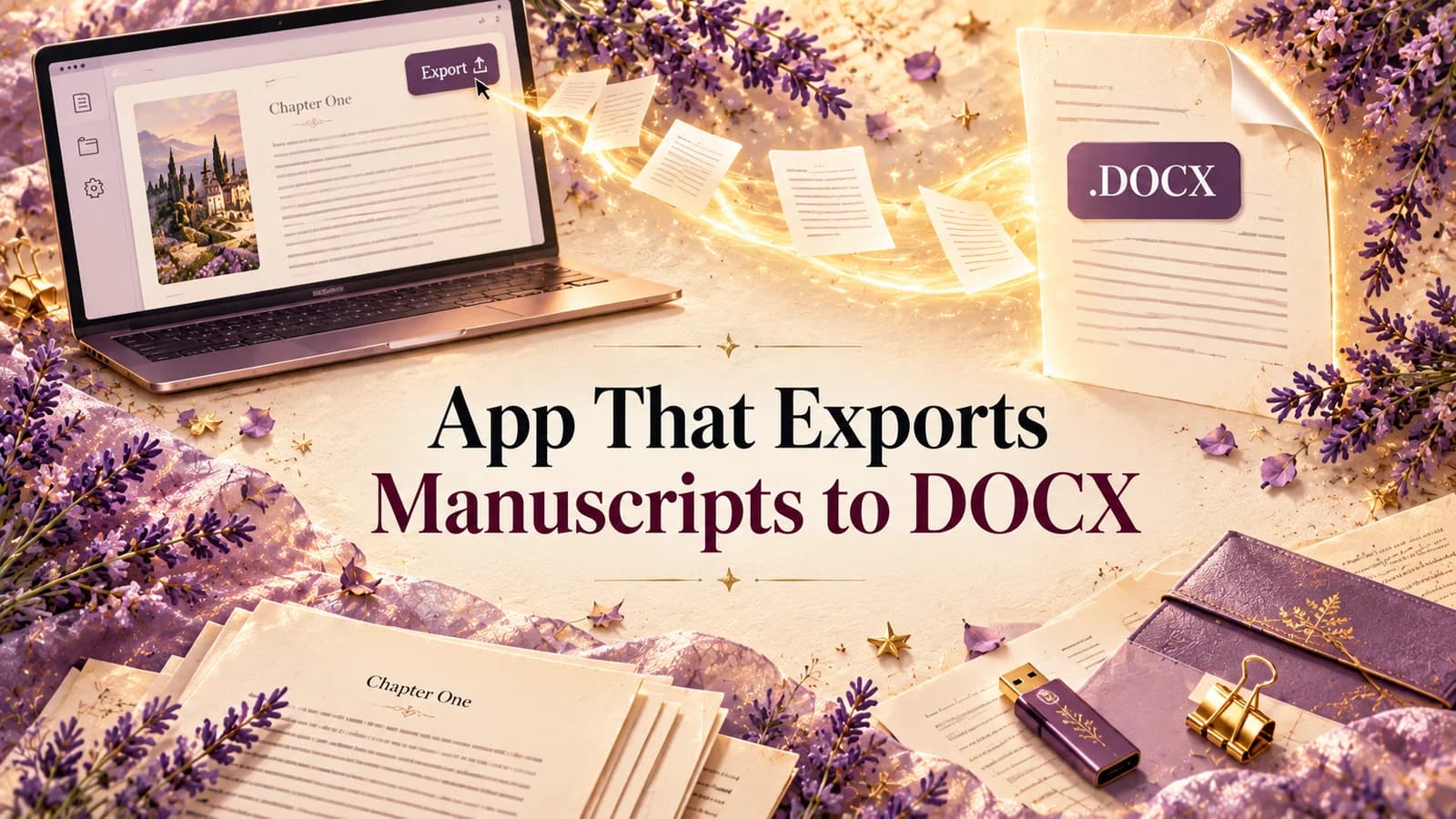
An App That Exports Your Manuscript to DOCX: What a Clean Word File Needs, and Why StoryWith AI Gets You There
Freelance developmental editor who has shepherded 200+ manuscripts from messy draft to publishable, and writes about revision like the craft it is.
You finish the book in the app you love. The editor replies to your email in an hour: "Great, send me the Word file."
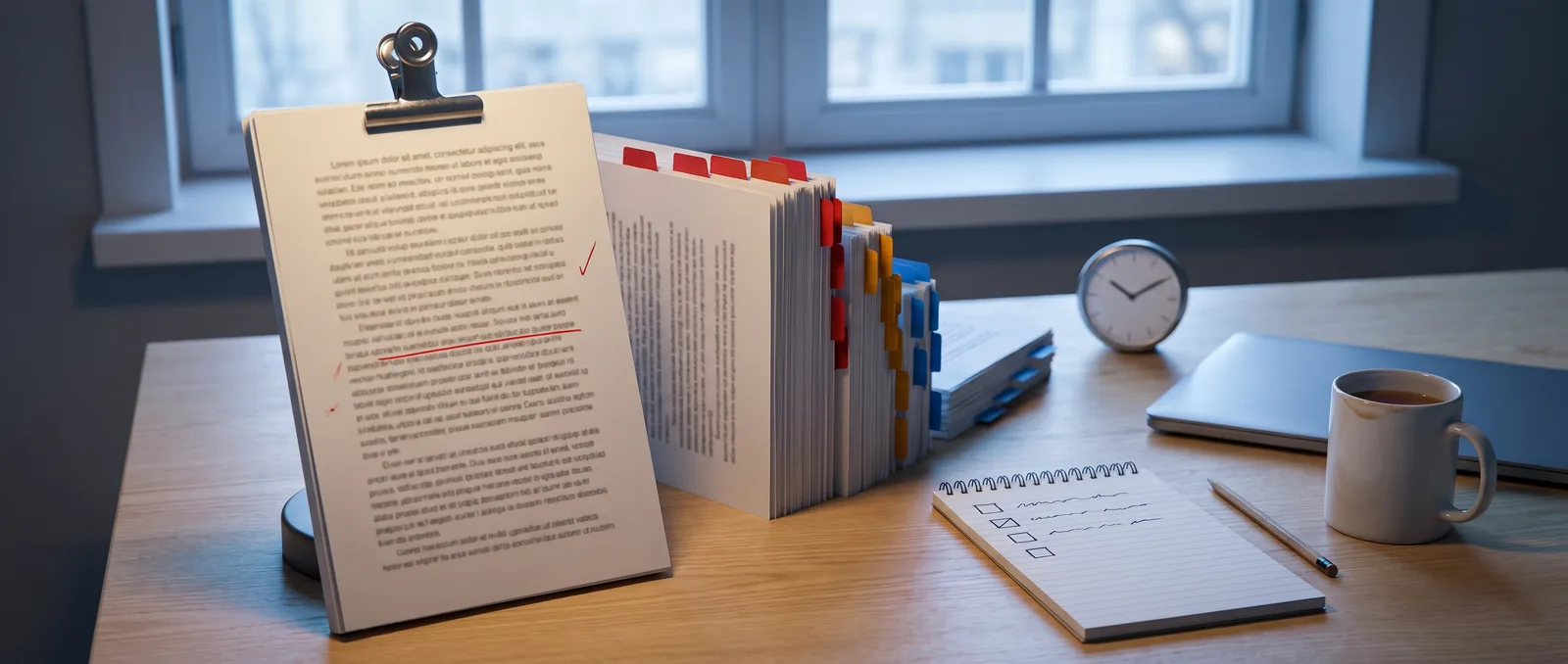
So you hit export, open the .docx, and your heart sinks. Chapter titles are just bold text. Scene breaks have vanished, so two scenes run into each other mid-page. The planning notes you kept beside each chapter are sitting in the middle of the prose. And the Navigation pane in Word, the thing your editor uses to jump around a 90,000-word book, is empty.
Nothing is wrong with the words. The file just doesn't know it's a book.
That's what this article is about: what a manuscript export to DOCX actually has to get right, how to check one in five minutes, and why StoryWith AI is built to hand you a Word file that is ready to send.
Why DOCX is still the file everyone asks for
Writers use dozens of apps. The people they send books to mostly use one.
| Who opens your file | What they do with it | What they need from the .docx |
|---|---|---|
| Developmental or line editor | Comments and track changes | Real chapter headings to navigate |
| Literary agent | Reads the full or partial | A clean, standard-looking file |
| Beta reader | Reads and leaves notes | Clear chapter and scene breaks |
| Formatter or typesetter | Builds the print and ebook files | Styles, not hand-made formatting |
| KDP and other platforms | Converts the upload | Headings that become a table of contents |
Every one of them is happier with a Word file whose structure is real, and every one of them pays a price when it isn't. Usually that price is your time, or the formatter's invoice.
Styles vs. formatting: the one idea that matters
Word has two ways to make a chapter title look like a chapter title.
- Formatting is surface: you select "Chapter Seven", make it bold, size 16, centred. It looks like a heading. To Word, it's just a line of large text.
- Styles are meaning: the line is tagged Heading 1. It looks like a heading and Word knows it's one.
That difference decides almost everything downstream:
- The Navigation pane lists every Heading 1, so an editor can jump straight to chapter 22.
- A table of contents builds itself from headings.
- Formatters and conversion tools use headings to find where chapters start, which decides where page breaks and ebook chapters fall.
- Changing the look of every chapter title takes one click on the style, not 30 manual edits.
A good manuscript export writes styles. A poor one writes formatting that only looks right.
The five-minute heading test
Run this on any DOCX export, from any app, before you send it to anyone.
- Open the Navigation pane (View → Navigation Pane). Do all your chapters appear, in order? If the pane is empty, your headings are formatting, not styles.
- Click a chapter title and look at the Styles gallery on the Home tab. It should say Heading 1, not Normal.
- Find a scene break in the middle of a chapter. Can you tell where one scene ends and the next begins?
- Search for your own notes. Try a word you only ever used in planning ("TODO", "fix", "outline"). Notes that leaked into the prose show up here.
- Check the title. The book's title should be at the top, styled as a title, not the first line of chapter one.
If an export passes all five, it's ready for an editor. If it fails two or more, you're about to spend an evening restyling a book by hand.
Where messy exports come from
Most broken DOCX files come from one of three habits, not from a bad app.
The book lives in pieces. One file per chapter, merged at the end. Each piece has its own formatting, so the merged book has five versions of "chapter title".
Notes live in the prose. Square-bracket reminders, colour-highlighted planning, "[expand this]". They're invisible to you because you know they're notes. They're not invisible to an agent.
Structure lives only in your head. If the app doesn't know which text is a chapter and which is a scene, it can't export that structure. It can only export the text.
So the best DOCX export starts long before you click Export. It starts with an app that holds your book as chapters and scenes from day one.
Why StoryWith AI helps you export a clean DOCX
A quick note: StoryWith AI is our own product, so weigh this section with that in mind. We've kept it to what the app does today.
StoryWith AI is a writing and manuscript-analysis studio for authors. You write in it scene by scene, inside chapters, and that structure is exactly what the Word export carries out.
1. The structure is real, so the export is too
StoryWith doesn't guess where your chapters are. Every chapter and every scene is a real thing in the app, which you add, name and reorder yourself. So when you export to Word:
- the book title comes out in Word's Title style,
- each chapter comes out as Heading 1,
- each scene title comes out as Heading 2.
Open the file and the Navigation pane already lists your chapters, with scenes nested beneath them. That's the heading test passed before you run it, and it's what an editor or formatter needs to work fast.
2. One book, not a folder of chapters
Because the whole manuscript lives in one place, the export is one consistent file. There is no merging of chapter files, no five versions of "chapter title", and no wondering which copy of chapter 14 is the final one. Scene version history keeps earlier drafts of each scene inside the app, so old versions don't need to live in your exported file either.
3. Your planning notes stay out of the manuscript
If you plan the book in StoryWith, each chapter keeps its plan as an outline note, clearly marked "Not part of your manuscript" in the editor. The export keeps that promise: outline notes are left out of your Word and PDF files. You can plan as messily as you like and still send a clean file.
4. Bring a book in, send a book out
Already wrote the book in Word, Google Docs or something else? You can import a .docx, .pdf or .txt file. StoryWith reads it into chapters and scenes, so you can organize it, check it, and export it again as a properly structured DOCX. For many authors that alone fixes a file that was built on formatting rather than styles.
5. Check the book before it leaves
A clean file with a broken story is still a broken story. Before you export, StoryWith's analysis can look over the manuscript for you:
- Readiness check: structural checks such as length, premise and continuity, with a pass, warning or fail for each.
- Continuity: contradictions across chapters.
- Story Map: the order of every chapter and scene, with a tension score on each.
- Reader personas: simulated readers who say where they would lose interest.
None of these rewrite your prose. They show you what to look at, so the file you send is the version you meant to send.
6. More than one format
Word is the one editors ask for, but it isn't the only export. StoryWith also exports PDF, Markdown and plain text. The PDF is a reading copy, handy for beta readers on a tablet.
What it doesn't do
Honesty saves you time here:
- It isn't a print-formatting tool. The PDF is a reading copy, not a print-ready interior for KDP, and there is no EPUB export. Send the DOCX to a formatter, or into a formatting tool, for the final print and ebook files.
- There is no track changes inside StoryWith. Comments inside the app are threaded and anchored to the passage, but if your editor works in track changes, that happens in Word after you export.
Your pre-send checklist
Do this every time you export a manuscript to DOCX:
- ☐ Navigation pane lists every chapter, in order
- ☐ Chapter titles use Heading 1, not bold Normal text
- ☐ Scene breaks are visible in every chapter
- ☐ No planning notes, brackets or highlights in the prose
- ☐ Book title at the top, in the Title style
- ☐ File named so the recipient can find it:
Surname_Title_Full_2026-10.docx - ☐ You opened the file yourself before attaching it
Questions writers ask about exporting to DOCX
Is DOCX the same as "Word format"?
Yes. .docx is the standard file format for Microsoft Word, and Google Docs, Apple Pages and LibreOffice all open it.
Can I upload StoryWith's DOCX straight to KDP? KDP accepts DOCX, and the Heading 1 chapters help it find your chapters. But StoryWith doesn't format for print: trim size, margins and fonts are up to you or your formatter. Check KDP's previewer before you publish, and work through our KDP publishing checklist for the rest.
Does exporting use AI credits? No. Exporting your manuscript is not an AI action. Credits are used by things like importing a manuscript, building an outline and running analysis.
Should I export one chapter or the whole book? Send what was asked for. Agents usually want the first few chapters; editors want the whole book. Exporting the whole book and trimming is easier than stitching chapters together.
The short version
A DOCX export is only as good as the structure behind it. If your app knows what a chapter is, the file will too: real headings, a working Navigation pane, no stray notes, one consistent book.
That's the reason StoryWith AI helps. You write in chapters and scenes from the start, your planning stays out of the manuscript, and the Word file comes out with a Title, Heading 1 chapters and Heading 2 scenes, ready for the editor who asked for it.
Run the five-minute heading test on your current export. If it fails, try writing, or importing, your book at storywith.ai.