Writing with AI
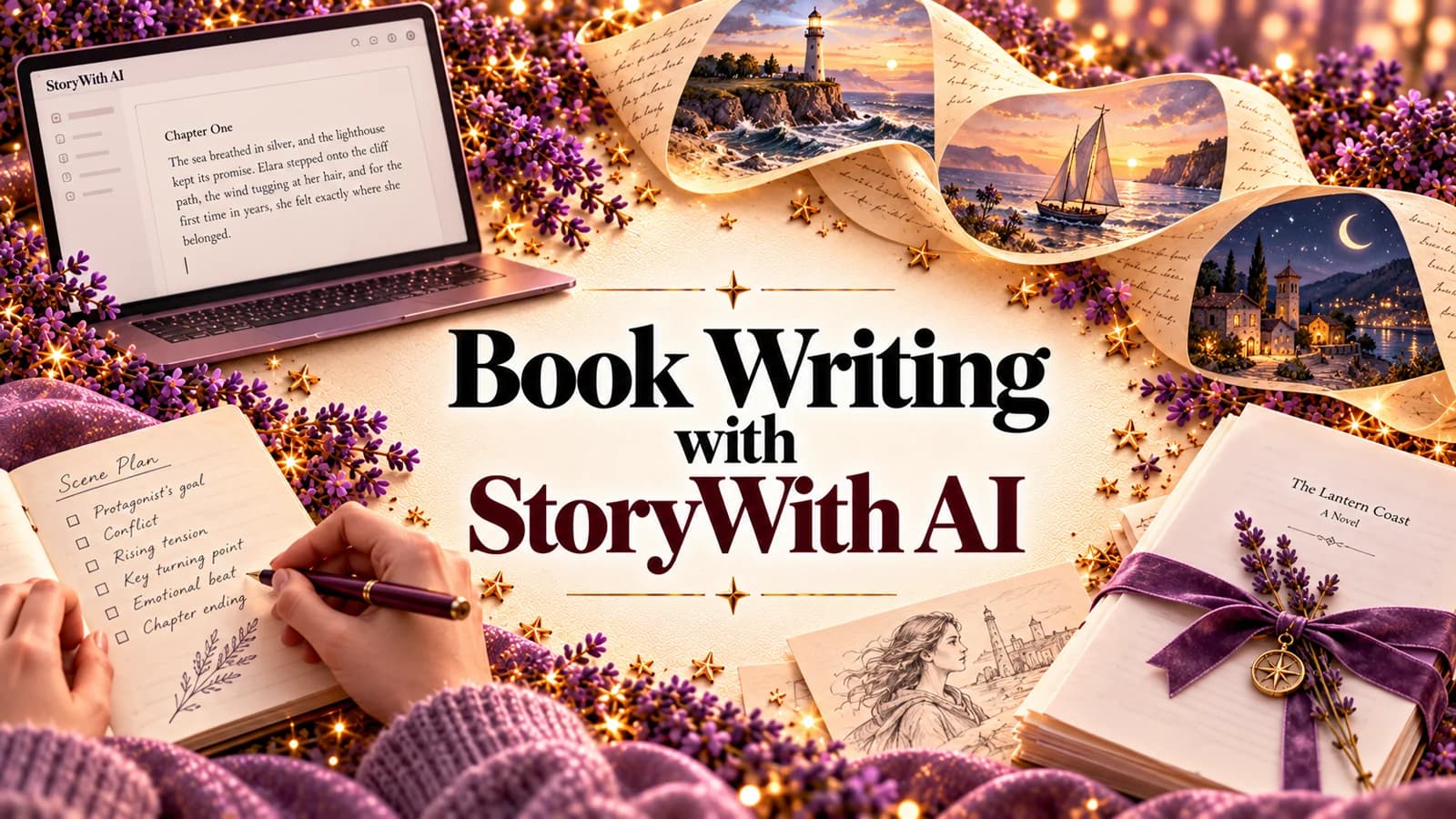
Book Writing with StoryWith AI: A Step-by-Step Guide from First Idea to Finished Manuscript (2026)

Memoirist and former hospice chaplain writing about grief, memory, and finding meaning late.
Most guides to writing a book with AI start with a prompt and end with a pile of generated text. This one doesn't.
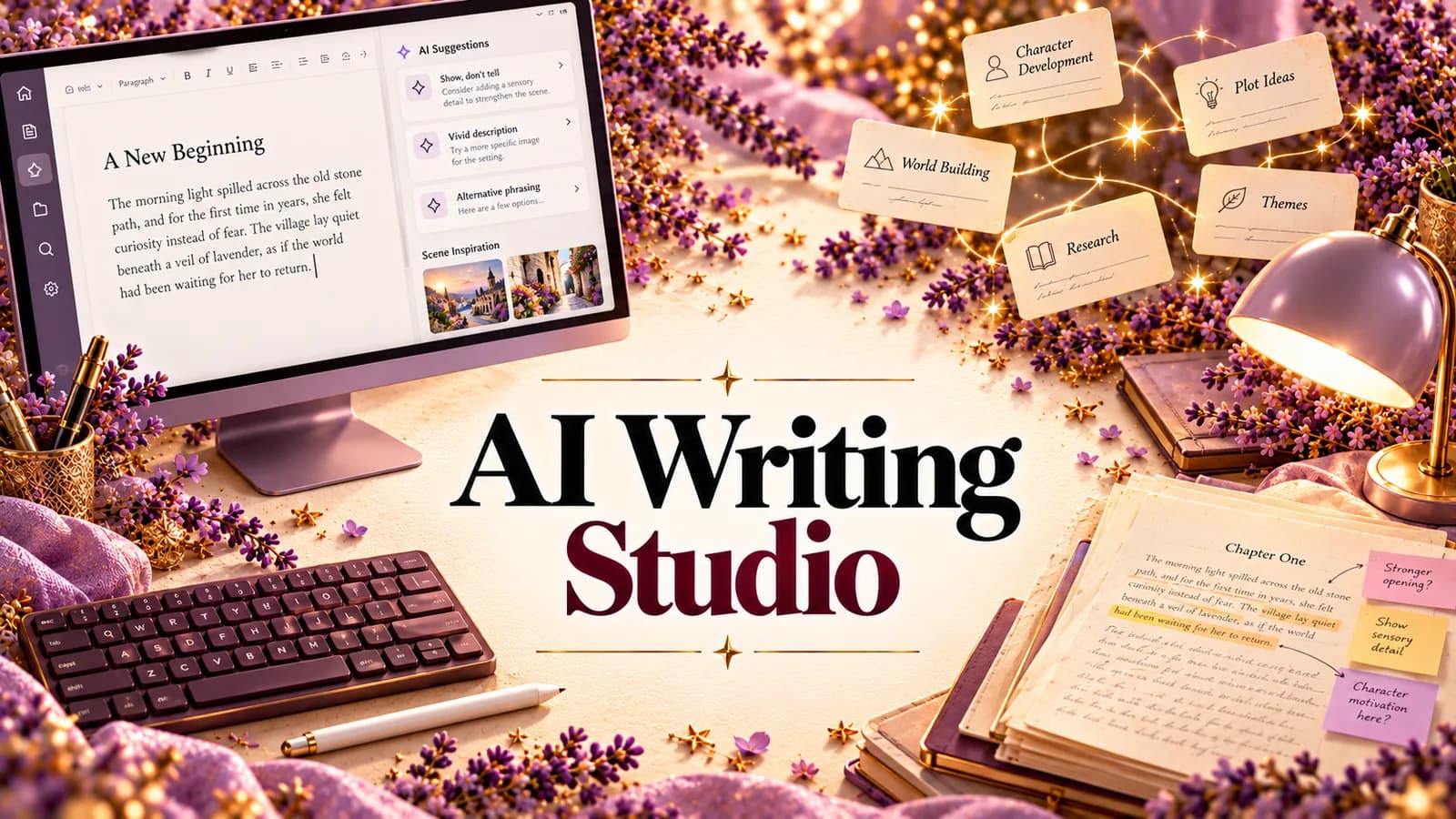
Book writing with StoryWith AI works the other way round. You write the book. StoryWith keeps track of everything in it, reads it back to you as a whole, tells you what isn't working and where, and gets it in front of readers before anyone else sees it. Your words stay yours from the first note to the final export.
This guide walks through the whole process in eight steps, in the order most authors use them. You can follow it with a new idea or with a draft you've already written. It works for fiction and non-fiction, and we'll point out where the two differ.
(StoryWith AI is our product. We'll also be clear about what it doesn't do.)
The whole process at a glance
| Step | What you do | What StoryWith does for you |
|---|---|---|
| 1. Capture | Note ideas as they come | Transcribes voice notes, then titles, summarizes and tags each idea |
| 2. Start the book | Create a book, or import a draft | Splits an imported draft into chapters and scenes |
| 3. Plan | Build characters, world and outline | Holds it all in a Story Bible (or Research Bible) |
| 4. Draft | Write chapters and scenes | Autosaves, keeps version history, helps only when you ask |
| 5. Keep it in sync | Keep writing and revising | Proposes Story Bible updates as the draft changes |
| 6. Diagnose | Run whole-book analysis | Finds structure, pacing, arc and continuity problems, ranked and linked to the page |
| 7. Revise | Fix the problems in your own words | Tracks each finding and shows a readiness score |
| 8. Finish | Test on readers, pitch, export | AI and real beta readers, Pitch Kit, Word and PDF export |
You don't have to use every step. Plenty of authors arrive at step 6 with a finished draft. But the steps feed each other, and that's where the time savings come from.
Step 1: Capture ideas before they disappear
Every book starts as scraps: a line of dialogue on a walk, a "what if" in the shower, a chapter title at 2 a.m.
Put them in the Ideas vault. Type them, or record a voice note and have it transcribed. You choose how it comes back: word for word, or cleaned up into a sentence, a paragraph or a short scene.
When the vault fills up, press Organize. Each idea gets a title, a summary and tags, so the good ones stop getting lost in a notes app. When you start a book, you link the ideas that belong to it, and the planning tools work from them.
Tip: Don't wait until you have "the" idea. Capture everything for a week, organize once, and see which ideas keep showing up together.
Step 2: Start a book, or bring in the one you've already written
Starting fresh? Create a book and link your ideas to it.
Already have a draft? Import it. StoryWith accepts .docx, .md, .txt and .pdf files with selectable text. It splits the draft into chapters and scenes, then builds the Story Bible from what you actually wrote. (A scanned PDF needs to be saved as .docx first.)
Importing is the fastest way to see what StoryWith can do. Within one session you can go from a single long Word file to a book that has characters, places and a timeline pulled from your own pages.
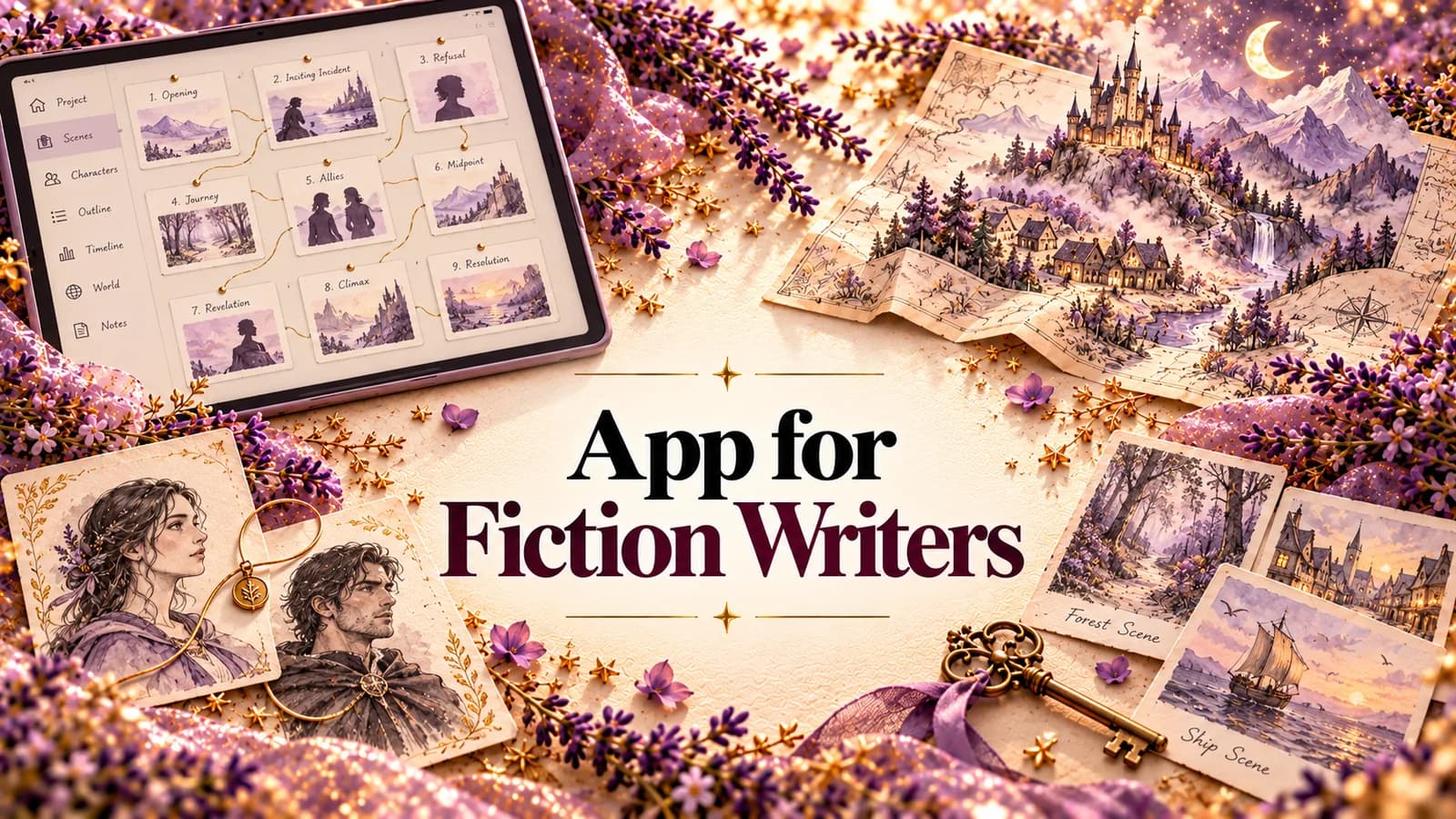
Step 3: Plan in the Story Bible
The Story Bible is where your book's facts live, so you don't have to hold them in your head.
- Characters: role, voice, goals, fears, secrets, backstory and arc, including what they want versus what they need.
- Relationships: typed connections such as ally, rival, mentor, family and romance.
- Places, themes and timeline: what happens where, and when.
- Worldbuilding: for fantasy and science fiction, room for magic systems, cultures, languages and factions.
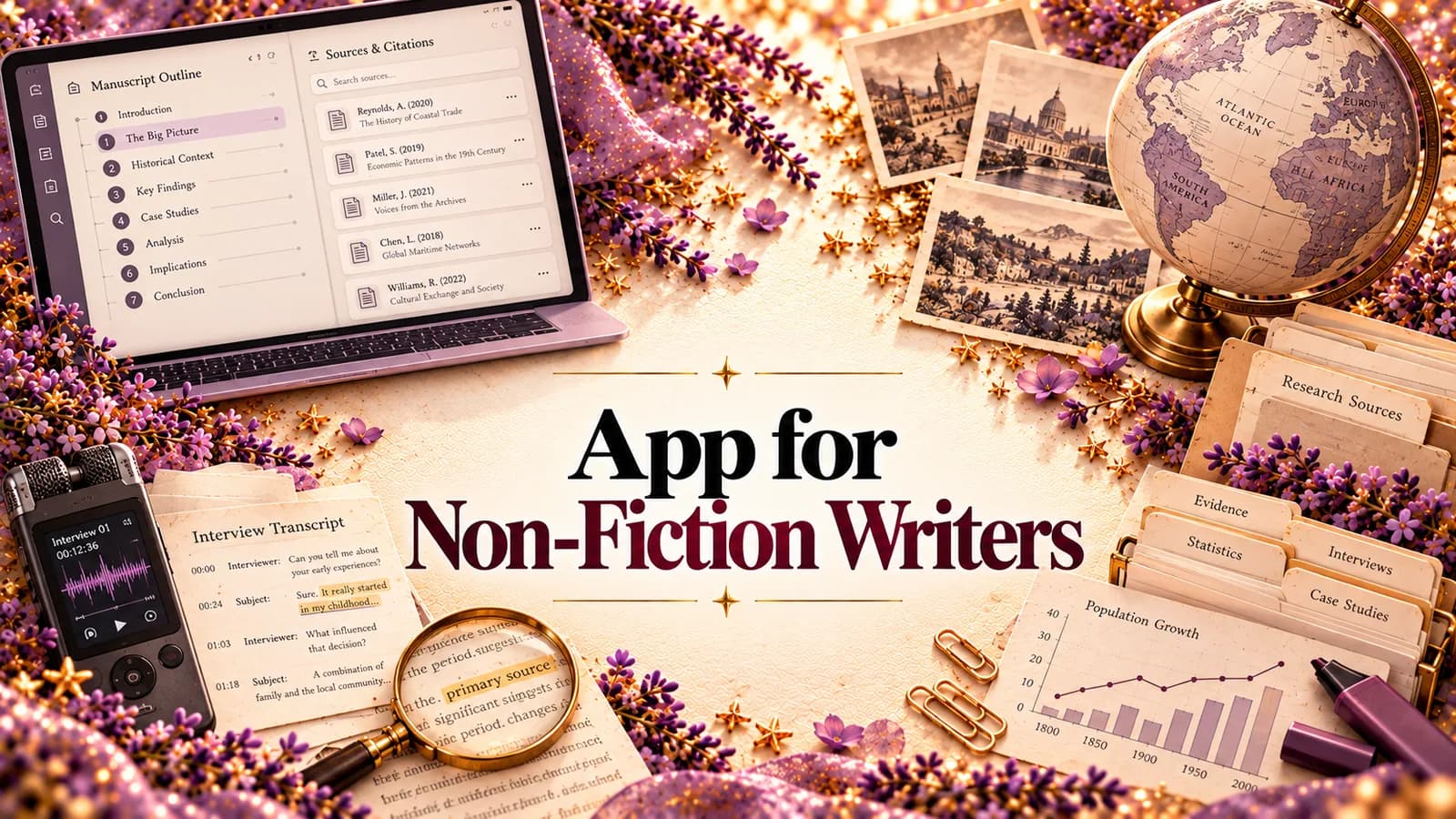
Writing non-fiction? The bible becomes a Research Bible: the people, organizations, concepts and key terms your book depends on, with your sources kept next to the manuscript.
Tip: Fill in want and need for your main characters before you draft. Later, the character-arc analysis will show you whether the draft actually delivers that change.
Step 4: Draft in a calm editor
The manuscript is organized into chapters and scenes you can drag into a new order. The editor is distraction-free and autosaves as you type. Planning notes stay out of the exported book.
Every scene keeps a version history. That makes bold revision safe: cut the subplot, rewrite the opening, and restore the old version if it doesn't work.
When you want help with a passage, select it and choose:
| Action | Use it when |
|---|---|
| Tighten | A paragraph says the right thing in too many words |
| Rewrite | You want to see the passage another way |
| Describe | A setting or moment needs more texture |
| Analyze | You want to know what a passage is doing, and what it isn't |
| Instruct | You have a specific request in your own words |
What comes back is a suggestion. Nothing changes in your manuscript until you accept it. Most authors use this sparingly, on the paragraphs they're stuck on, and write everything else themselves.
Step 5: Keep the bible in sync as the draft changes
This is the step that quietly breaks every other system. You rename a character in chapter four, give someone a new backstory in chapter nine, and the notes from three months ago are now wrong.
In StoryWith, Sync with manuscript proposes updates to the Story Bible after your draft changes. You review each one and accept or reject it. Your bible stays true to the book you're actually writing, not the one you planned.
Tip: Run a sync at the end of each writing week. It takes minutes, and it's much easier than untangling a bible that is twenty chapters out of date.
Step 6: Diagnose the whole book
Once you have a full draft, or even a solid half, run the analyzers. They read every chapter, so they find problems that only exist across the book:
- Structure and beats: setups that never pay off, turns that don't land.
- Pacing and emotional arc: tension chapter by chapter, on a chart.
- Character arcs: where change starts, stalls or never arrives.
- Scene purpose: scenes that are well written but do no work.
- Continuity and plot holes: names spelled two ways, ages that shift, timelines that contradict themselves.
- Dialogue: voices that blur together, and exposition dressed up as talk.
- Readability and theme: prose outside your genre's range, and what the book is about underneath.
Non-fiction adds fact check, argument soundness and a dependency scan that flags ideas you use before you've explained them.
Every finding links to the passage that caused it. All of them land in one Diagnostics list, sorted into Critical, High, Medium and Low, so you know what to fix first.
Step 7: Revise with a map, not a feeling
In Next Steps, each finding becomes a card that explains why it matters and suggests a direction, not a rewrite. For each one you can:
- open the scene and fix it in your own words,
- mark it resolved,
- pin it to come back to, or
- defer it to the next draft.
A readiness score goes up as you work, so you can see the book improving across a revision instead of just hoping it is.
Tip: Do the Critical and High findings first and re-run the analysis before touching anything Medium. Structural fixes often make smaller problems disappear on their own.
Step 8: Test on readers, pitch, and export
AI beta readers. Test a chapter on 3 to 5 simulated reader personas. Each rates engagement, clarity, emotional impact and genre fit, and shows where they'd stop reading. They're simulated and directional, and StoryWith says so. They're best for a quick check before real readers see it.
Real beta readers. Share chapters with up to 20 readers through a private link, ask your own questions, and see where each one stopped reading. The draft is never sent out as a file.
Pitch Kit. For fiction: title ideas, a logline, a blurb, comps and a query letter. For non-fiction: a book proposal built from your own manuscript, with an overview, market analysis, comp titles and a chapter-by-chapter outline.
Export. Word, PDF, Markdown or plain text, with chapters as real headings, ready for an editor, an agent or your formatting tool.
Your book stays yours
- Private by default. Your book is visible only to you and the collaborators and readers you invite.
- Not used for training. Your manuscript is never used to train AI models, and it's never sold.
- AI-assisted, not AI-generated. Because StoryWith diagnoses rather than writes, feedback on your own book counts as AI-assisted under Amazon KDP's guidelines. (Check KDP's current policy before you publish.)
What StoryWith doesn't do
- It won't write your book for you. It isn't built to generate chapters for you to publish.
- It can't judge voice or market fit. The analysis finds what can be found systematically. Whether the ending is earned is still your call, and an editor's.
- There's no track changes. If your editor works only in Word redlines, export for that round.
- It isn't a reference manager. For formal citations in an academic book, keep Zotero.
- There are no sprint timers or word-count streaks.
- AI analyses use credits. Writing, organizing, the Story Bible and the readiness check don't.
What it costs
You can start free, with no card needed. The Free plan includes every tool and unlimited books, with a small one-time AI allowance and basic continuity and coverage scans.
| Plan | Price | Who it's for |
|---|---|---|
| Free | $0 | Trying the whole process on your own book |
| Author | $19/month | Working authors: 500 AI text actions a month, full continuity, coverage and dependency scans, up to 2 collaborators per book |
| Pro | $39/month | Full-time authors and editors: unlimited AI text actions, priority models, unlimited reader sessions, up to 5 collaborators |
| Studio | Team plan | Teams: Pro for every member, shared library, roles, pooled AI |
Check storywith.ai/pricing for current prices.
Common questions
Do I need a finished draft to use StoryWith? No. You can start from a single idea in the Ideas vault. But if you have a draft, importing it is the fastest way in.
Will StoryWith write my book? No. You write it. AI edits only happen when you ask, and only land when you accept them.
Does it work for non-fiction? Yes. Non-fiction gets a Research Bible, sources, fact check, argument soundness, a dependency scan and a book proposal builder.
Can I write on my phone? Yes, in any modern mobile browser or with the Android app on Google Play.
Can I leave and take my book with me? Yes. Export to Word, PDF, Markdown or plain text at any time.
The bottom line
Book writing with StoryWith AI isn't about getting a machine to write for you. It's about never losing an idea, never letting your notes go stale, seeing the whole book at once, and knowing exactly what to fix next. You hold the pen the whole way. StoryWith holds everything else.
Start your book free at storywith.ai.